Guides
Auto SR on Windows 11: What It Is, Which PCs Support It and How to Turn It On
Auto SR is Microsoft's on-device game upscaler for Windows 11. Here are the PCs it supports, how to turn it on, the best input resolutions and the limits Microsoft lists.
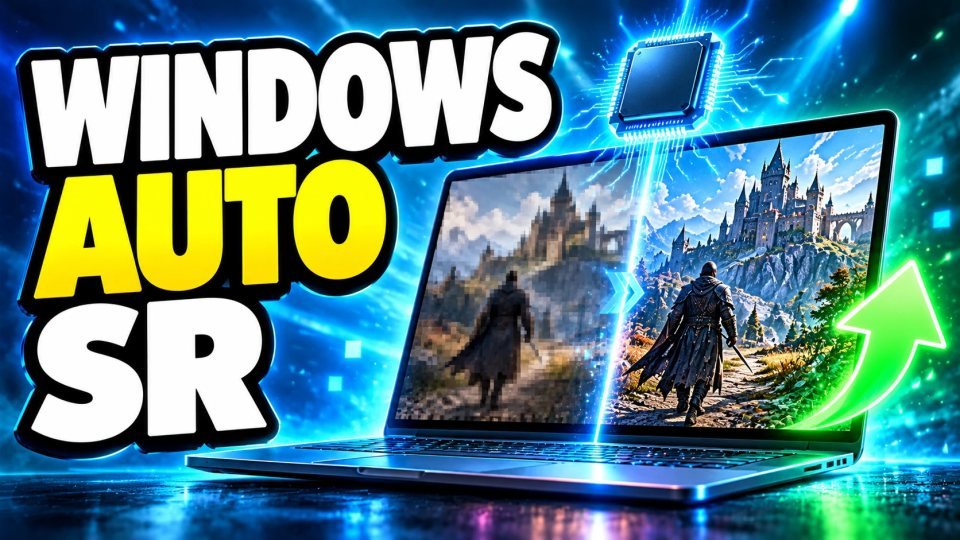
Automatic Super Resolution, or Auto SR, is a Windows 11 feature that makes games look sharper at a higher frame rate by drawing them at a lower resolution and upscaling the picture. This guide uses Microsoft's own support page to explain what it does, which devices can use it, how to switch it on and what it cannot do. It is not available on every PC, so check the requirements first.
What Auto SR does
Microsoft says Auto SR upscales a game to a higher output resolution after it renders at a lower one, aiming to keep visual quality while improving the frame rate. It runs on the device, using the integrated graphics and the NPU, and Microsoft says graphics and game details are not sent to the cloud or to Microsoft. It is opt in and is not on by default. Microsoft's April 2026 Windows blog post describes the same idea for the ROG Xbox Ally X, saying that when the device is docked to an external display it aims for 1440p like detail with smooth frame rates.
Which PCs support it
According to Microsoft's support page, Auto SR needs one of these devices:
- A Copilot+ PC with a Snapdragon X or X2 Series processor with a Hexagon NPU, such as the Surface Laptop 7.
- A Copilot+ PC with an Intel Core Ultra Series 3 processor.
- The ROG Xbox Ally X, which needs Xbox Insider enrollment and docking to a display.
The page also lists Windows 11 version 24H2 or later, fully updated, a display of 1080p or higher, and the latest graphics and neural processor drivers through Windows Update. Games must use DirectX 10 or later, running natively on x64, through x64 emulation or on Arm64. The page mentions an Auto SR package for AMD Ryzen platforms too, but the device list does not include AMD systems, so check the page for your exact PC.
The best game resolution
Microsoft advises setting the game to a resolution close to these for the best results: 1280 x 800 on Snapdragon based Copilot+ PCs, 1280 x 800 up to 1920 x 1080 on Intel based Copilot+ PCs, and 1280 x 720 on the ROG Xbox Ally X. It says Auto SR generally improves games that render below 1080p.
How to turn it on
Microsoft gives three ways:
- Game Bar (recommended): launch the game, press Win + G, open Widgets, then Display, then Auto SR. Turn on Always use with this game and Show in-game status indicator. Set a supported resolution and use Fullscreen or Exclusive Fullscreen.
- Settings, per game: go to Start, Settings, System, Display, Graphics, Custom settings for applications, select the game and set Automatic super resolution to On.
- Settings, all games: in Graphics, set the Automatic super resolution default to On. Per game settings override this default.
Limits Microsoft lists
- Games that use DirectX 9, Vulkan or OpenGL, x86 only games and some formats such as 10 bit are not supported.
- Auto SR does not currently support HDR, so turn it off to use HDR.
- Text and menus may not look ideal, and the AI model may sometimes produce odd rendering effects.
- Game Bar and the Snipping Tool generally do not capture the Auto SR image.
- Results vary by game, settings and system.
On older Snapdragon X Series devices, Microsoft says Auto SR was applied by default to a list of verified games, including Borderlands 3, God of War, Dark Souls III, Sekiro and The Witcher 3. It does not publish a full list on this page.
Quick checklist
- Check your device against Microsoft's list before you try.
- Update Windows and your drivers first.
- Set the game to the suggested lower resolution and use fullscreen.
- Turn off HDR if you want to use Auto SR.
- Test your favorite game, because results differ.
Verified with (2)
We check each fact against at least two independent sources and write the text ourselves.